
This article shows you how to easily upload an existing world to your server. Follow the instructions below to do this directly from the control panel.
How to Upload an Existing World to the Server
1. Locate your world folder on your PC:
C:\Users\<username>\AppData\Roaming\.minecraft\saves
2. Compress the folder into a .zip file.
3. Go to the Control Panel
4. Stop the server
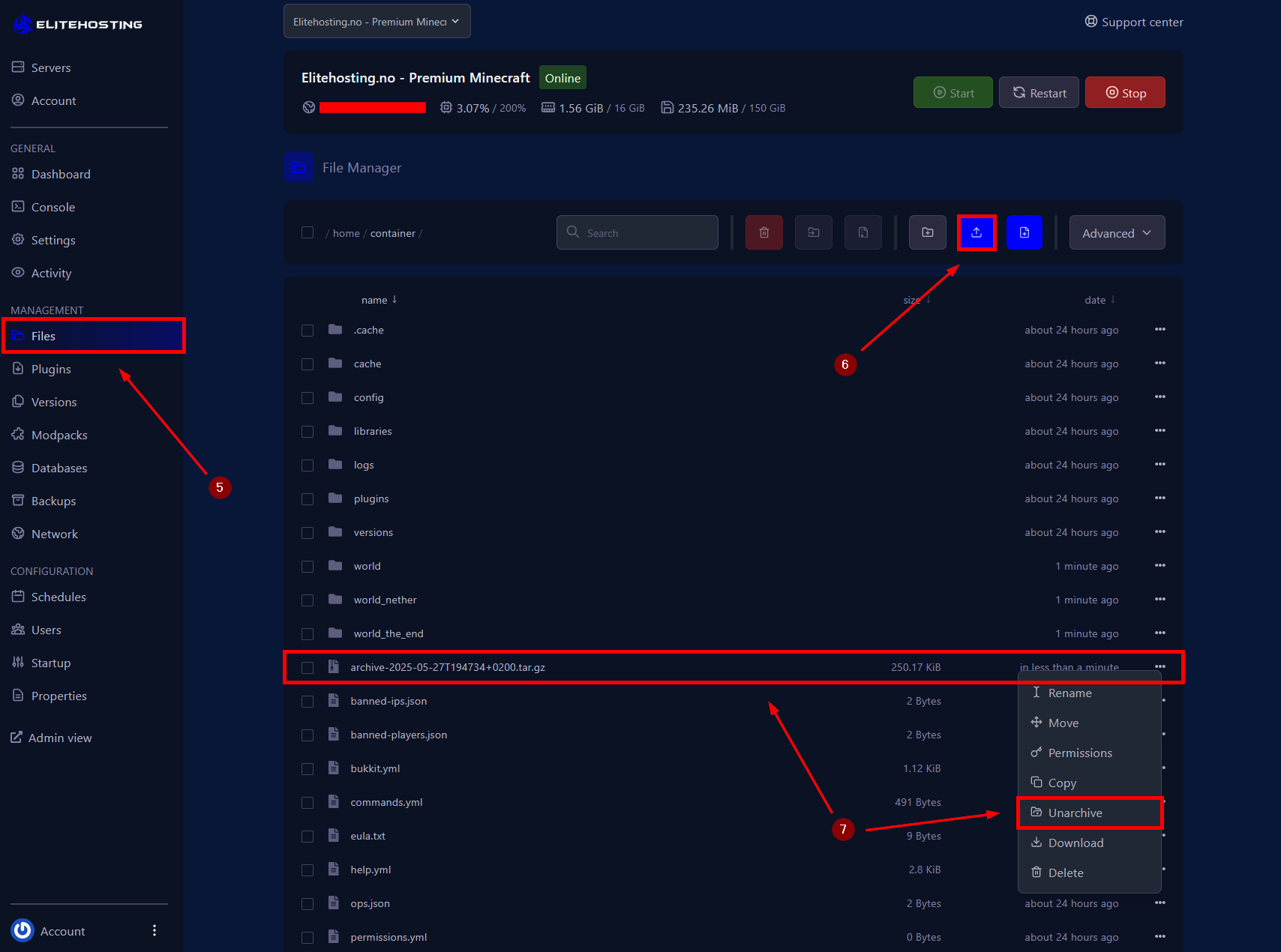
5. Go to the Files menu
6. Upload the compressed file. Max 100 MB via the panel. If the file is larger than 100 MB, you must connect to the server's file system via an SFTP client. How to connect via SFTP?
7. Click the three dots to the right of the file (...) and select Unarchive
8. Rename the extracted folder to world. Alternatively, you can keep the original name, but then you must update the level-name value in the server.properties file.
9. Start the server
If you need further assistance, feel free to contact us here: https://elitehosting.no/submitticket.php